
Percy Docs
Documentation
Percy Claude Code Plugin
If you already use Claude Code, you can connect Percy to your existing setup by installing the Percy Claude Code Plugin. This page assumes you already have Percy installed in VS Code. If not, start with the installation guide.
1. Switch the agent to Claude Code
After opening Percy in VS Code, open the agent selector and switch the selected agent to Claude Code.
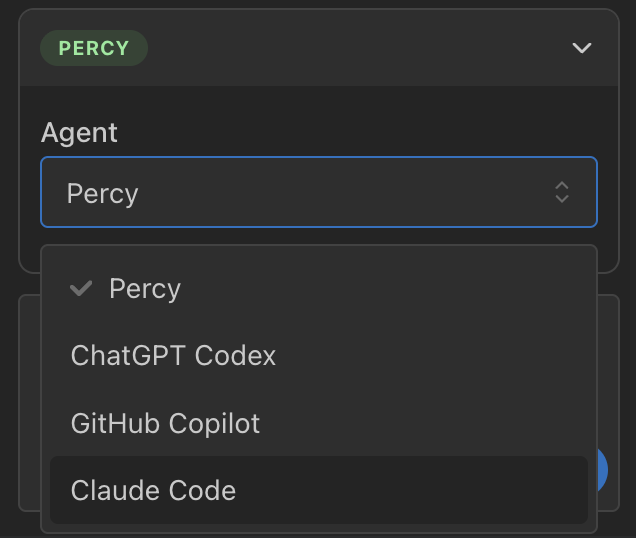
After you select Claude Code, Percy will show the Claude Code Plugin setup instructions directly in the panel. Follow the instructions there.
2. Install the Percy Claude Code Plugin
In the Claude Code Plugin setup section, install the plugin using one of the available options:
- Install globally (preferred) to use the Percy plugin in all workspaces.
- Install in workspace to use the Percy plugin only in the current workspace.
3. Start Claude Code from the same workspace
After the plugin is installed, start a new Claude Code session from the same VS Code workspace.
You can do that in one of two ways:
- If you use the Claude Code VS Code extension, start a new Claude Code chat in VS Code.
- If you use the Claude Code CLI, open a new terminal and run the command shown in the Claude Code Plugin setup section.
Claude Code runs outside the Percy chat panel. After setup, keep this VS Code workspace open to keep the plugin active, and chat with Percy through Claude Code instead of the Percy composer.
Troubleshooting
You can confirm that the Percy Claude Code Plugin is set up correctly by running the /mcp command in Claude Code.
If the plugin is not connecting correctly:
- Make sure you keep your VS Code workspace open. Closing the workspace will deactivate the plugin.
- Make sure Claude Code was launched from the same workspace that is open in VS Code. If you're not sure, open a new terminal and paste the command shown in the Claude Code Plugin setup section (or just use the Claude Code VS Code extension).
- If you're using the Claude Code VS Code extension, start a new Claude Code chat after installing the plugin so the plugin is activated for the new session.
- If you're working in a new workspace, make sure you open that workspace in VS Code and have a Percy Project set up for that workspace.
- If you're still having trouble, try reinstalling the Percy Claude Code Plugin and restarting VS Code, or contact us here or at support@percivaltech.com